Product preview

Private sharing for the media source you already trust.

closharing is a private social layer built around trusted mounted or SMB media sources. It is not generic cloud storage. The model is source-first, invite-only, and designed to keep access aligned with the media location people already control.

  • Trusted source first.
  • Invite-only sharing circle.
  • Private chat, activity, media, and podcast workflows.
  • Ask Pulse for on-device insights into expenses, earnings, and investments.

What the product is trying to solve

This route explains the product before someone lands inside the authenticated workspace. The goal is to describe why the system exists: sharing around media that already has a clear source of truth, rather than duplicating that media into yet another service boundary.

The public copy also explains that the route is still evolving. That distinction matters for both users and search engines, because the page should describe the direction of the product even while the richer UI continues to change inside the app.

Current shape

The current product direction includes network management, invite flows, shared media browsing, podcasts, activity, and chat. The public prerendered route gives the product enough explanatory content to stand on its own, while the authenticated routes hold the deeper operational experience.

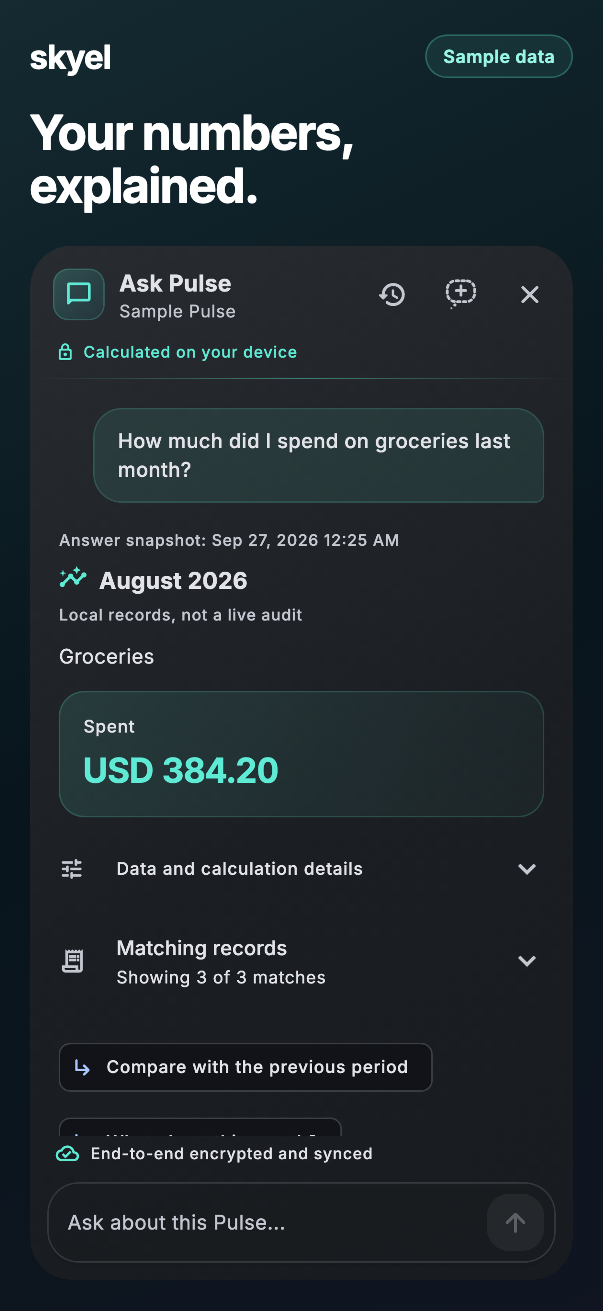
Your numbers, explained.

Ask about expenses, earnings and investments in a private chat. See totals and comparisons, calculated on your device. Saved conversations stay end-to-end encrypted. Preview uses fictional records.

Ask Pulse totals a sample month's grocery spending in an encrypted conversation. All records shown are fictional.

USER GUIDE

Find your way around skyel.

Short, simple steps for everything skyel does, from your first sign-in to shared photos, podcasts and Pulse. Pick a topic to begin.

Start here

  1. Get skyel

    Tap Open CGF, then Continue on the web to sign in right away. For the Android, iPhone or iPad apps, request access and we'll email you an invite once you're approved.

  2. Sign in

    Use your email address and confirm it's you. On another device, use your existing passcode or saved recovery phrase to open encrypted data. Keep an enrolled device signed in until recovery succeeds.

  3. Create or join a group

    Tap Create New Group to start your own. Got an invite? Open its link, or tap Join with an invite and paste it.

  4. Set your passcode

    Choose a passcode of at least 6 characters when skyel asks. It unlocks skyel and protects the keys that keep your things private.

Explore by topic

Screens show sample data.

Groups

A group is your private circle. What you share there stays with its members.

  1. Tap Create New Group and give it a name. You're its owner.
  2. Choose Invite, enter their Email Address and tap Send Invite. Or tap Copy link and send it your own way.
  3. See everyone under Members. As the owner, use Rename to change the name or Remove from Group to take someone out.

Good to know

  • Nobody joins until they accept your invite. Compare security codes with each other before accepting or sharing keys. Older invites may need the owner to update skyel and reconnect first.
  • Owners can't leave their own group. Delete Group erases it for everyone and can't be undone.
All topics
A group page with tiles for Chat, Activity, Media, Podcasts, Reminders, Fitness and Pulse.

Chat

Talk with the whole group or with one member, and share photos, videos, files and podcasts.

  1. Open Chat to talk with the whole group. For one member, tap Members, pick them and choose Message. Before sending privately, compare and confirm the security code with that person through a channel you already trust.
  2. Attach up to 30 photos, videos or files at a time, or Share a podcast.
  3. Press and hold a message, or right-click it, to Reply, React or Pin.

Good to know

  • Type @ to mention someone. Up to 3 messages stay pinned, and a new pin replaces the oldest.
  • Delete for everyone removes your message for all members. Delete on this device only removes it here.
All topics
A group conversation with messages, a shared photo and reactions.

Activity

One feed for everything happening in your group, with likes and comments.

  1. Open Activity and switch between All, My Activity and Group.
  2. Narrow the feed to one kind of activity when you're looking for something specific.
  3. Like what you enjoy or add a Comment. You can edit or delete your own comments.

Good to know

  • Purge my activities clears your own items up to a date you choose.
  • Activity is encrypted on your device before it leaves.
All topics
The Activity feed with filters and recent updates.

Media

Bring photos and videos together from the cloud, your network or this device, and share them with your group.

  1. Tap Add Media Source and pick Azure cloud media, Network storage or folders on this device.
  2. Upload photos, videos or whole folders. On your phone, Automatic backup keeps your camera roll backed up.
  3. Use Share Source to open a source to your group, or Share to chat to send one item.

Good to know

  • Uploads to Azure are encrypted on your device first, and comments on them are end-to-end encrypted.
  • Deleted items wait in Media Trash for 7 days. Only the source owner can restore them.
All topics
A media gallery with photo and video thumbnails.

Photo widgets

A gentle slideshow of your recently viewed Azure photos on your home screen or desktop. Reminders and Pulse have widgets too.

  1. Add the skyel media - Azure widget. It shows up to 25 photos you viewed recently, or a folder you choose.
  2. In Settings under Widgets, set the Time per photo from 20 seconds to 5 minutes and choose whether to Show the skyel signature.
  3. From a photo's menu, choose Position in photo widgets to frame it, or Hide from photo widgets.

Good to know

  • Widgets come with the apps, not the web, and hide your photos while the device is locked.
  • Timing and look follow your account. The source and folder stay on each device. If a widget asks you to reopen skyel after an update, sign in and unlock it so the widget can refresh safely.
All topics
The photo position picker over a sample photo.

Podcasts

Follow shows, share playlists with your group and pick up where you left off.

  1. Browse or search for a show and tap Subscribe. Your shows wait in your Library.
  2. Tap Create Playlist, use Add to Playlist on any episode, and Share Playlist with your group.
  3. Play at 0.5x to 2x speed, and turn on Autoplay or Loop.

Good to know

  • Download for Offline works in the apps.
  • Your subscriptions, listening progress and shared playlists are encrypted on your device.
All topics
The podcast player with episode artwork and playback controls.

Pulse

Track what you spend and earn, set budgets and goals, and see where your money goes.

  1. Tap Add entry and choose Spent or Earned.
  2. Use Set budgets and Create goal, or bring past records in with Import from Excel.
  3. Open Pulse report and tap Prepare PDF for any range from 7 days to 5 years.

Good to know

  • Ask Pulse isn't AI. It answers on your device, and its history is encrypted with your personal key.
  • skyel never links to your bank. Stock quotes are delayed 15 minutes, and only the ticker is sent.
All topics
Pulse with a spending summary and recent entries.

Reminders

Shared to-dos and gentle nudges, for you or anyone in your group.

  1. Tap Add reminder, pick a time and choose how it repeats: daily, weekly, on weekdays, monthly, yearly or your own pattern.
  2. Set its Priority and Tag, then choose who it's for under Members.
  3. Turn on Email for the ones you can't miss, so a copy reaches your inbox too.

Good to know

  • A reminder on the 31st lands on the last day of shorter months.
  • Deleted reminders go to the trash on this device, where you can restore them.
All topics
A list of upcoming reminders with priorities and tags.

Fitness

Set goals together, log your progress and see how it trends.

  1. Open Fitness goals and choose what to track: steps, active minutes, weekly workouts or a target weight.
  2. Tap Log entry whenever you check in.
  3. Switch between Trend, Bars, Pie and Table views, in kg or lb and km or mi.

Good to know

  • Fitness entries are encrypted with your group's key.
  • skyel doesn't read from wearables. You add entries yourself.
All topics
Fitness goals with a progress chart.

Password Manager

A private vault for passwords, cards, IDs and notes, locked with a master password only you know.

  1. Open Password Manager from the menu and create a Master Password of at least 8 characters.
  2. Save passwords, cards, IDs, memberships, Wi-Fi networks, secure notes and authenticator codes.
  3. Run Watchtower to find weak, reused or breached passwords, and use Sync vault to keep a copy in Dropbox or OneDrive.

Good to know

  • No one can recover a forgotten master password, not even us. The vault locks after 5 minutes idle.
  • Check Breaches sends only the start of a scrambled copy of each password, never the password itself.
All topics
The password vault with Watchtower showing password health.

Locks and privacy

Choose how skyel locks and what your notifications show.

  1. In Settings, set your App Passcode and turn on Biometric App Lock on iPhone, iPad, Android or Mac.
  2. Under Notification previews, choose Names and content, Names only or No names or content.
  3. Forgot it? Tap Forgot passcode? on the lock screen. A fresh sign-in starts a 24-hour wait before you can reset an existing passcode. Return and confirm again after the wait.

Good to know

  • skyel locks after 10 minutes idle, and podcasts keep playing. On the web, it signs you out after 9 minutes unless you trust that browser.
  • Notifications are decrypted on your device and show their content only once it's unlocked. Browser notifications stay generic.
All topics
Settings with passcode and biometric lock options.

Your account

Make skyel yours: your name, your language and your own public page.

  1. In Settings, set your Display Name and use Link Another Email to add a backup email.
  2. Pick your Language: English, Español, Français, Italiano or 中文. skyel follows your device's light or dark mode.
  3. On someone's public page, tap Create your own, pick a username and tap Claim username. Your page lives at skyel.net/yourname.

Good to know

  • Usernames have 3 to 24 lowercase letters or digits. You get one, and it can't be changed.
  • Delete account removes your server-held account data and public page. skyel may ask you to sign in again. Retry any incomplete step; cached pages and offline or saved copies do not disappear immediately.
All topics
Settings with display name, email and language options.

Questions

Which devices can I use?

skyel works in your browser, and beta apps are available for Android, iPhone and iPad.

Who can see what I share?

Only the members of the group you share it with. Messages, reminders, activities, Pulse records and uploads are encrypted on your device before they leave it.

I forgot my passcode. What now?

Tap Forgot passcode?, sign in again and follow the 24-hour reset wait. Keep an enrolled device signed in, or use your saved recovery phrase for older encrypted data. Resetting a passcode cannot recreate lost keys. Offline devices may still accept their old local passcode until they reconnect.

Why does skyel lock itself?

To keep your things safe when you step away. The app locks after 10 minutes idle and the password manager after 5. Podcasts keep playing.

How do I leave a group or delete my account?

Members choose Leave Group. Owners use Delete Group instead. To close your account, open Settings and choose Delete account.

Does skyel show ads or sell my data?

No. skyel has no ads and no ad tracking, and we never sell your data.

Still have a question? Write to us at dev@skyel.net.